

What is Ephemeral Port Forwarding and How to Use It


You may have heard about the Static IP Port Forwarding feature we have and went to bed crying after finding out that you need to purchase a separate Static IP to use it.
Well, if you're a Pro user, allow me to offer you a tissue for your tears as that it no longer the case! We now have Ephemeral Port Forwarding available to all Pro users, at no extra cost!
How to Set Up Ephemeral Port Forwarding on Windscribe
Ephemeral Port Forwarding is very simple to set up. Here's how it works: you request an Ephemeral Port on the Port Forwarding tab in My Account, then connect to ANY Windscribe location in the Windscribe app, and you will have that port forward configuration reserved and ready to use.
Here's a step-by-step guide:
- Sign in to My Account and open the Port Forwarding tab. The Ephemeral Port Forwards card is at the top. Press Request Port on it to open the Request Ephemeral Port window.
- Under Port type (1), choose how you want your port: Matching Port gives you a random port with the same number inside and out, while Specific Port lets you type in the Internal port (2) of the application you will be connecting to.
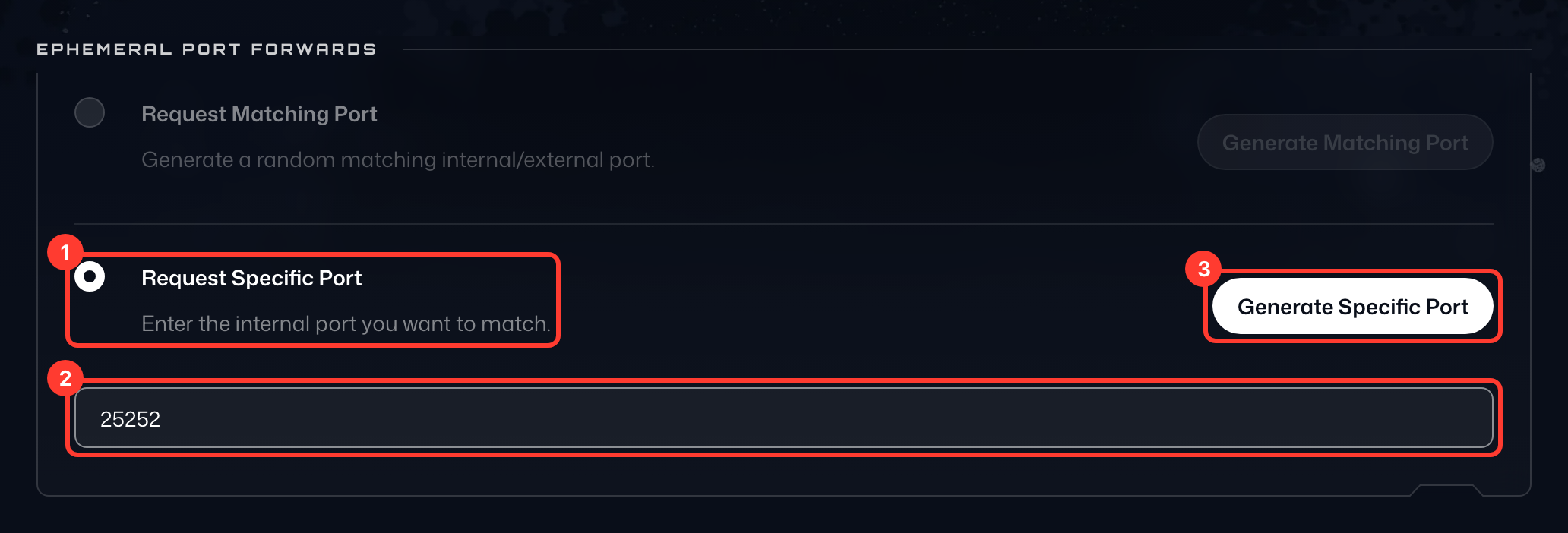
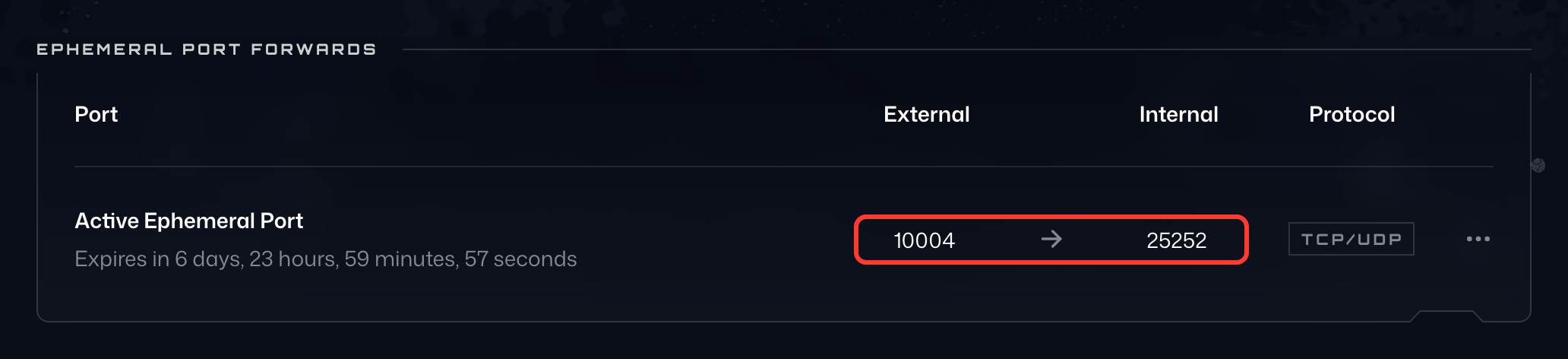
- Press Request Port (3). The card then shows your Active Ephemeral Port, with the External port you connect to (1) and the Internal port it forwards to (2).
- Connect to any Windscribe server on the device you will be hosting the forwarded service.
- A restart of that service might also be required to make sure everything is forwarded correctly.
At this point, using any other computer or device (don't use the same one as it won't work), you can enter the Windscribe IP you see in the client, followed by a colon ( : ) and then your external port from the card.
For example, if I was running a port forwarded media server at home and got the IP 204.187.100.211 and my external port was 10004, I would now be able to access that media server from any other device connected to the internet by going to 204.187.100.211:10004
Ephemeral Ports Are Time-Limited
Now, keep in mind that by definition (ephemeral - lasting for a short time) these port forward configurations will last for 7 days and then be cleared out. You request a port on all our servers for 1 week and after that week is up, you'll need to follow the steps above again to request a new port. The port's row shows how much time it has left next to Expires in (1). You can only have one ephemeral port at a time: to request a different one, press the trash icon (Delete port) on the row (2) and confirm with Delete Port.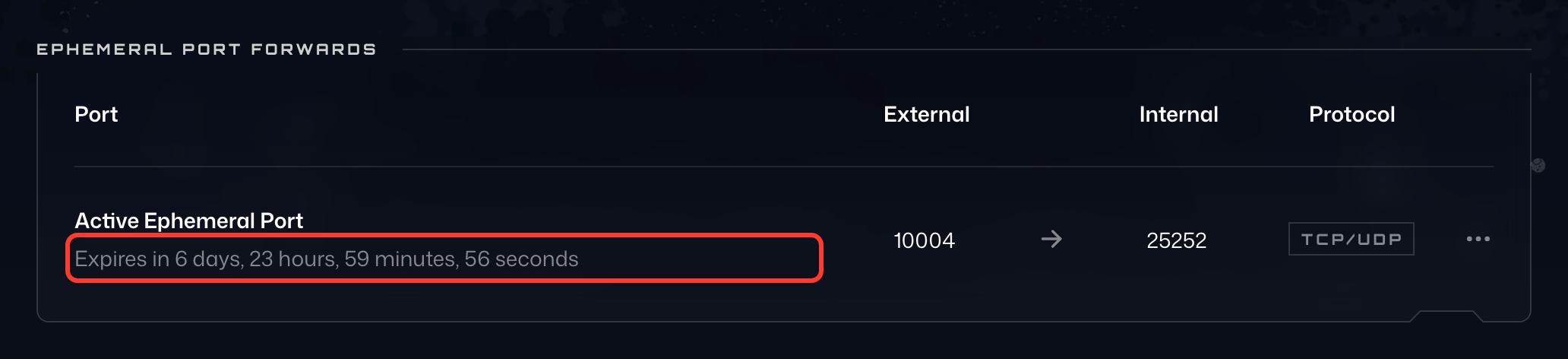
The reason it's timed is so that we can actually offer this service to everybody using Pro. Yes, there are thousands of available ports but if 1000 users permanently reserve all of those ports and never use them, the feature is no longer available to any other users as all ports have been taken.
If this is an issue for you and you'd like a permanent Port Forward configuration, you can always refer to the Static IP service that we offer. And the steps to set up a Static IP Port Forward configuration can be found here.
There is currently no Port Forwarding available to Free or Build-a-Plan users as our infrastructure is not set up to support it to that extent.