How to whitelist a domain in R.O.B.E.R.T.

Winder S
Oct 20, 2025

You can allow (whitelist) or block any domain in your R.O.B.E.R.T. settings. To find them, log in on our website, open My Account, select Security in the sidebar, then open Custom Rules (here is a quick link to that page).
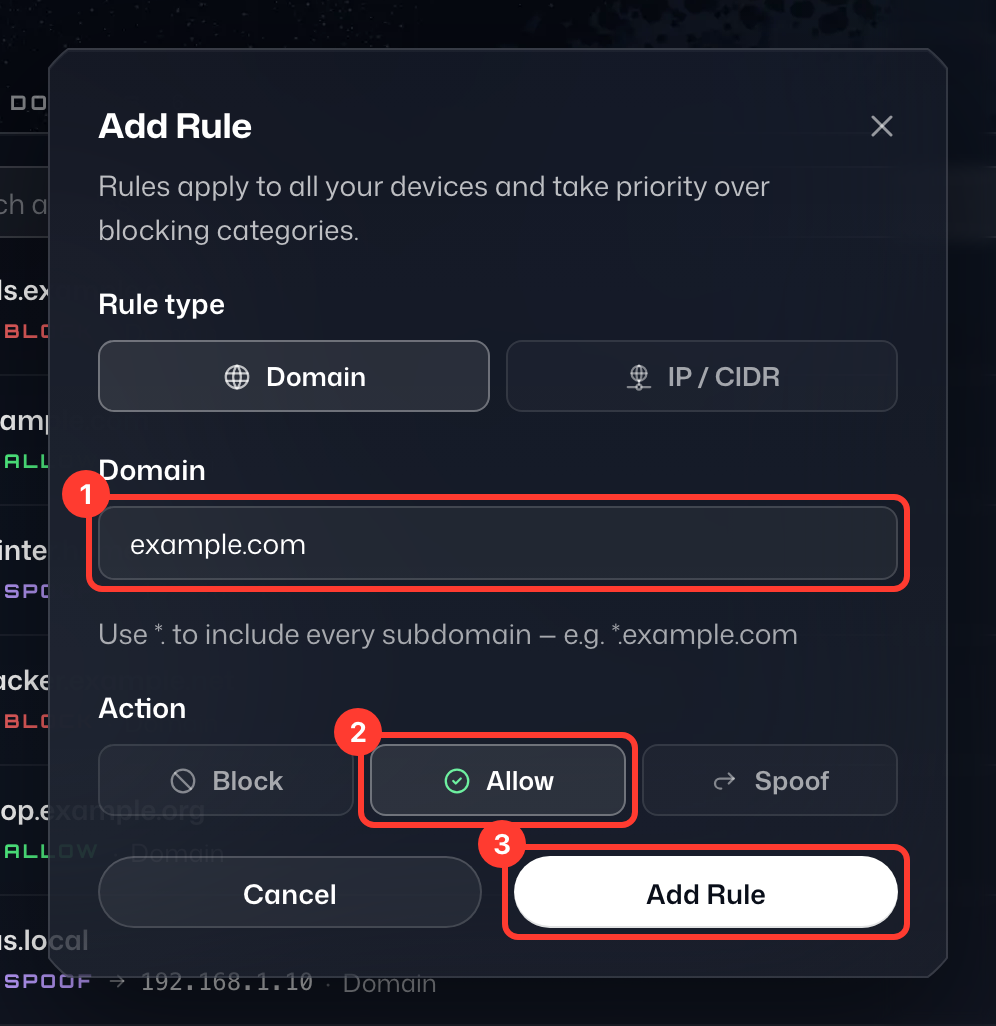
On the Custom Rules page, click Add Rule and leave the Rule type on Domain (choose IP / CIDR for an IP address or network). Then complete the following steps:
- Enter the domain you want to allow (or block). In this example, we've entered "example.com".
- Under Action, which is set to Block by default, choose what you'd like to happen. In this example, we'd select Allow.
- Click Add Rule to save the rule.