

How To Pause and Unpause a Subscription


We've recently introduced the ability for users to pause eligible subscriptions instead of cancelling outright. This allows users a break from billing/renewal when needed, and offers more control over what bills and when.
Which Subscriptions Can Be Paused
Any Pro, Custom Build-A-Plan, Static IP, or ScribeForce subscription paid directly on our site by credit card (via Stripe) can be paused from Subscriptions under Billing in your My Account settings.
Users who are paying via 3rd party (Paypal, Google Play, Apple, Amazon) cannot pause subscriptions at this time.
What Happens When A Subscription Is Paused
Your subscription renewal date will be placed on pause for the term you've selected (1, 3, 6 or 12 months), meaning you will not be billed/renewed during this time.
For example:
Garry's monthly Pro subscription is set to renew on May 1. He pauses his subscription for 3 months. His subscription will instead renew on August 1.
There is no immediate change to the user's upgrade status, only the renewal date itself. However, if user's upgrade/expiry date passes during the pause, the account will be downgraded.
For example:
Garry's annual Pro subscription is set to renew on May 1, and he pauses for 3 months, his upgrade would still expire on May 1 (since that is all he paid for), but would again be upgraded on August 1 once his subscription is unpaused (and he is re-billed).
When a subscription is paused you will maintain your current price point, and will be automatically re-billed at that same rate once unpaused, using your existing payment/card information. No new info is required.
It should be noted that pausing a subscription does not remove the user's billing information, only cancellation does.
What Happens When A Subscription Is Unpaused
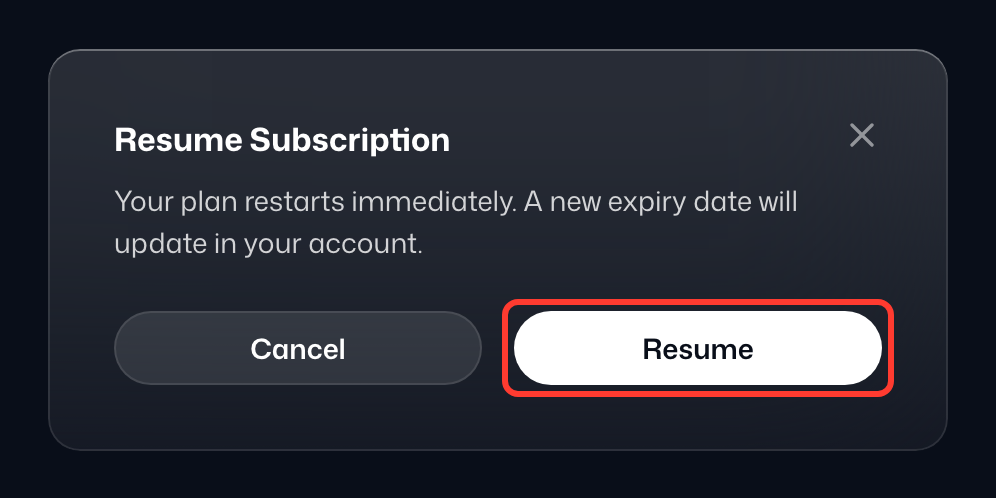
The user's subscription will restart immediately if it has lapsed, and they will be re-billed as expected. Their new expiry date will appear in their account info (per their upgrade).
If the user's subscription has not yet lapsed, they will not be billed until their original renewal date.
Annual subscription examples:
If Garry's annual subscription renews May 1, and he manually unpauses his subscription April 1, nothing happens to his account. His subscription remains ready to renew on May 1 as expected.
If Garry's annual subscription renews on May 1, and he pauses it until August 1, he will be downgraded on May 1, and then immediately re-billed on August 1 when his subscription unpauses. His account will also automatically be upgraded again as expected.
Monthly subscription example 1:
If Garry pauses his monthly subscription for 3 months after it renews on April 1, this sets his next renewal date to August 1, instead of May 1 (May + 3 months = August). If Garry changes his mind, and manually unpauses his subscription April 25, no changes are made to his subscription renewal date, and it renews on May 1 as originally scheduled.
Monthly subscription example 2:
If Garry pauses his monthly subscription for 3 months after it renews on April 1, this sets his next renewal date to August 1, instead of May 1 (May + 3 months = August). Garry's account is downgraded on May 1 as expected, until his subscription unpauses on Aug 1, when he is re-billed. His account will be automatically upgraded again as expected on that date.
How To Pause A Subscription
If at any point a user decides they'd like to pause a subscription, here are the steps to do so:
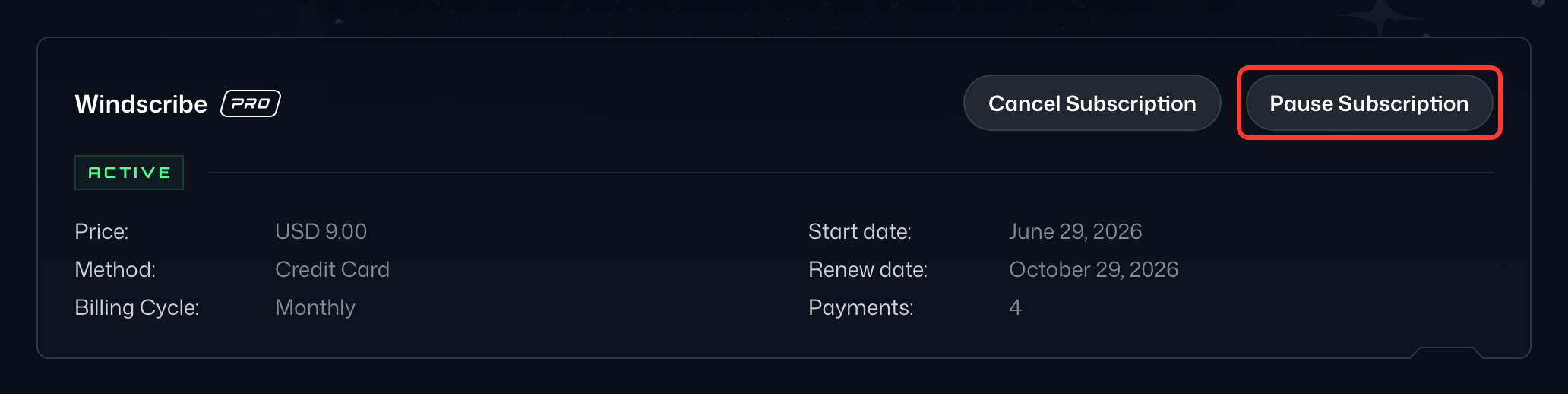
- Open Subscriptions under Billing (you must be logged in) (1) and locate the subscription you want to pause. If you have more than one subscription, be sure to select the correct one. Click ⋮ next to its price and choose Pause subscription (2).
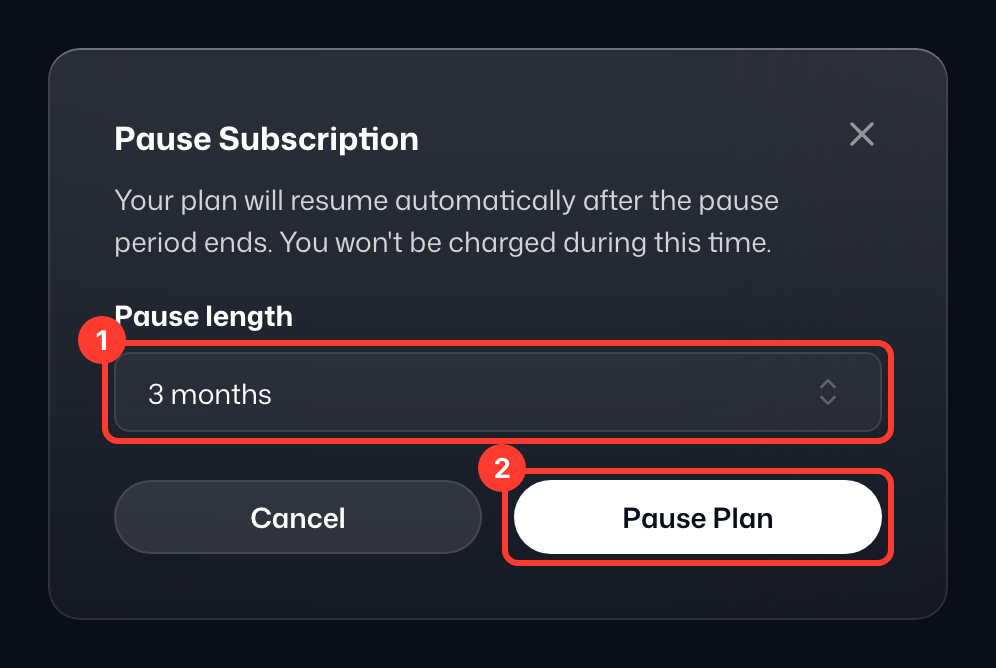
- Under How long to pause for?, choose 1, 3, 6 or 12 months (1). The dialog shows the date your subscription resumes automatically.
- Click Yes, Pause (2).
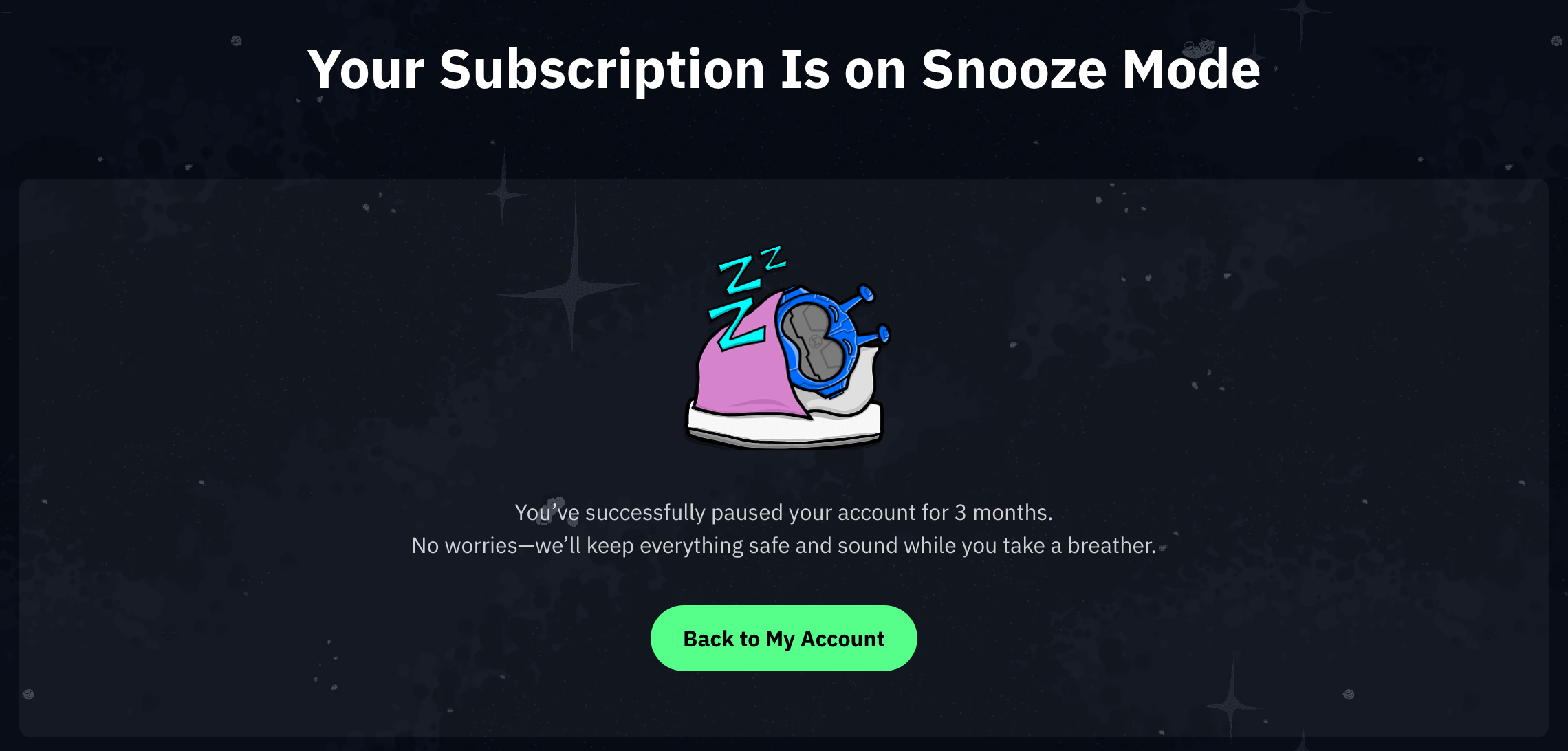
- You'll then be taken to the confirmation page, Your Account Is on Snooze Mode, which shows how long the pause lasts and the day it ends.
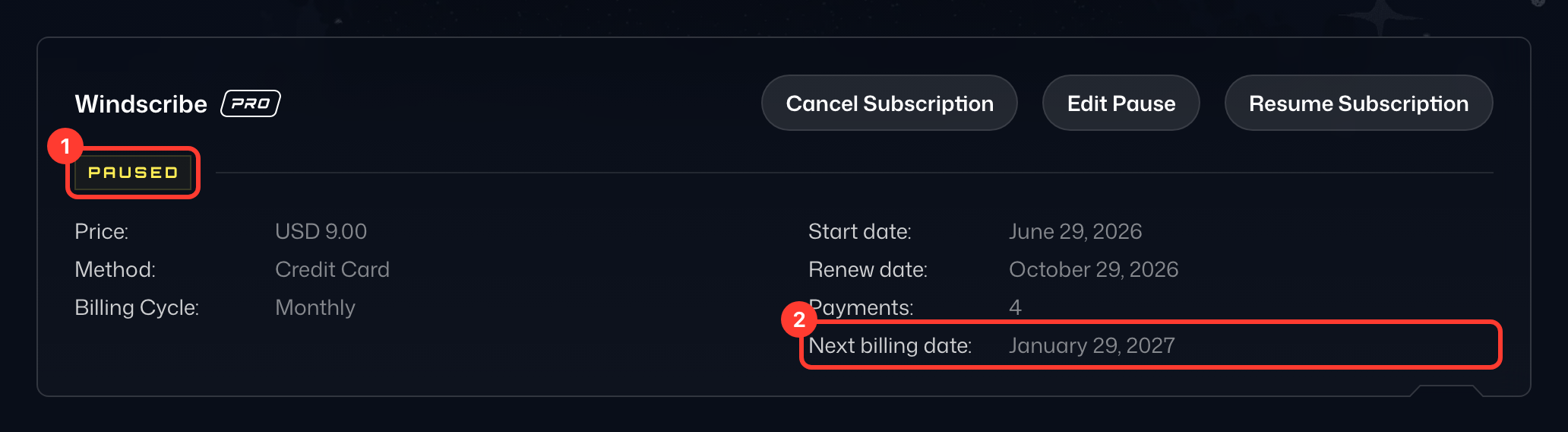
- Back on Subscriptions, the subscription moves to the Paused tab (1), and Resumes (2) shows the day billing restarts. To change how long it stays paused, choose Edit pause from the same ⋮ menu.
How To Unpause A Subscription
If you change your mind at any point, you can also manually unpause your subscription. Here are the steps to do so:
- Open the Paused tab on Subscriptions and locate the subscription you want to unpause.
- Click Resume next to its price.
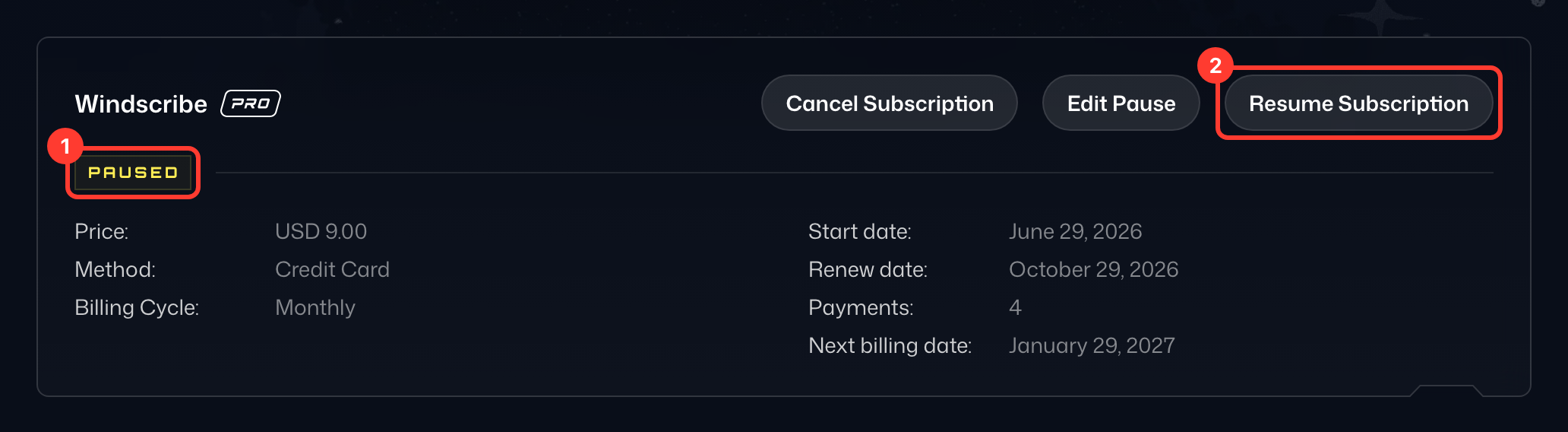
- Click Yes, Unpause to confirm.
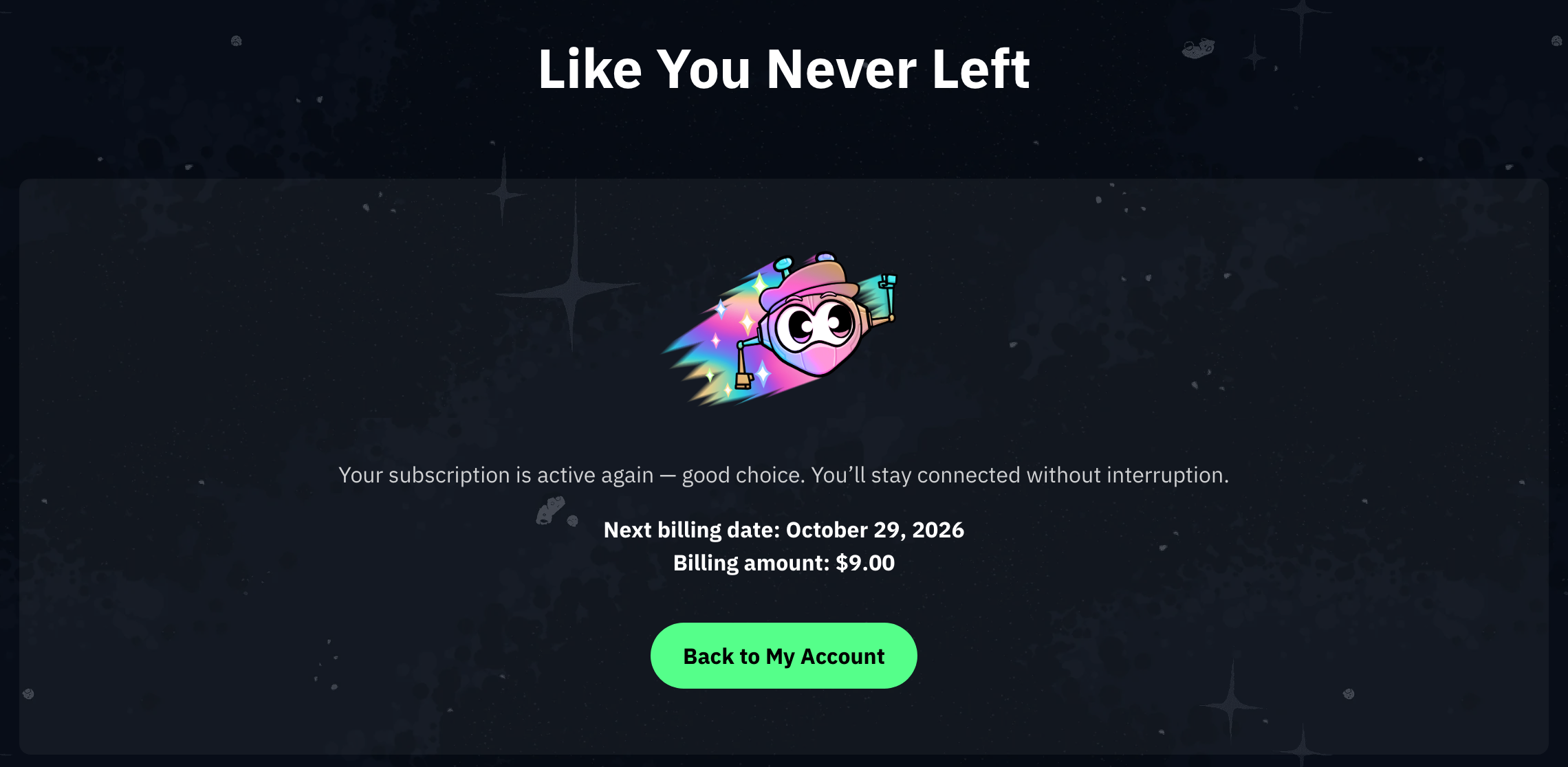
- You'll then be taken to the confirmation page, Like You Never Left.
If you have any questions about your subscription, or have issues with this process, please contact the support team for assistance.