

How do I enable 2 Factor Authentication on my account?

Winder S
Dec 17, 2025

You can enable 2 Factor Authentication (2FA) from Credentials under Security in My Account: https://windscribe.com/myaccount/security
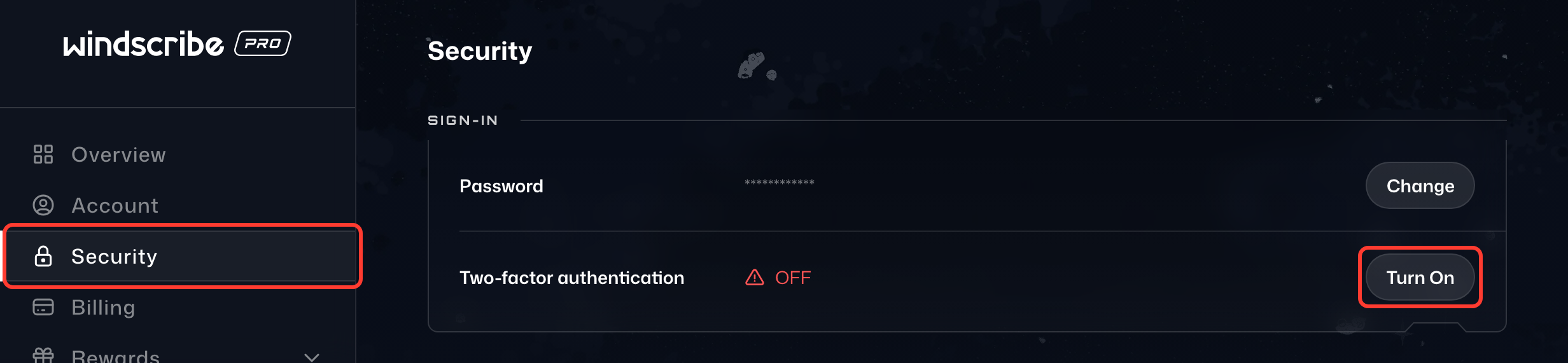
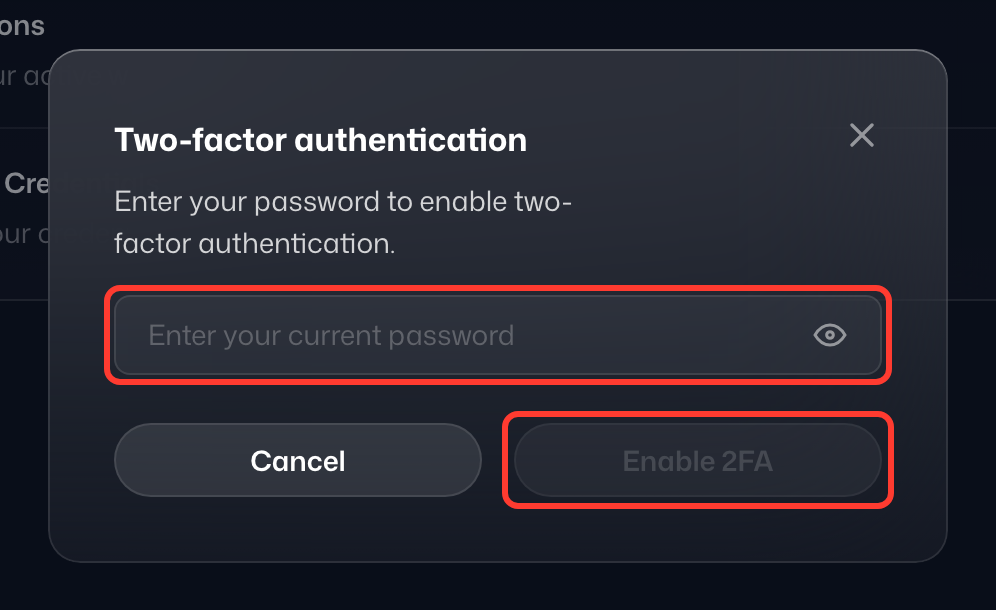
- In the Sign-In card, click Enable 2FA on the Two-factor authentication row, enter your password and select Continue.
- The Set Up Two-Factor dialog shows a QR code and a recovery key. With a TOTP (Time-based One-time Password) supporting 2FA application, you can either scan this QR code, or manually enter the recovery key if the app has the option to do so. Examples of such apps are Aegis Authenticator, andOTP, Tofu, Authy, Google Authenticator, etc.
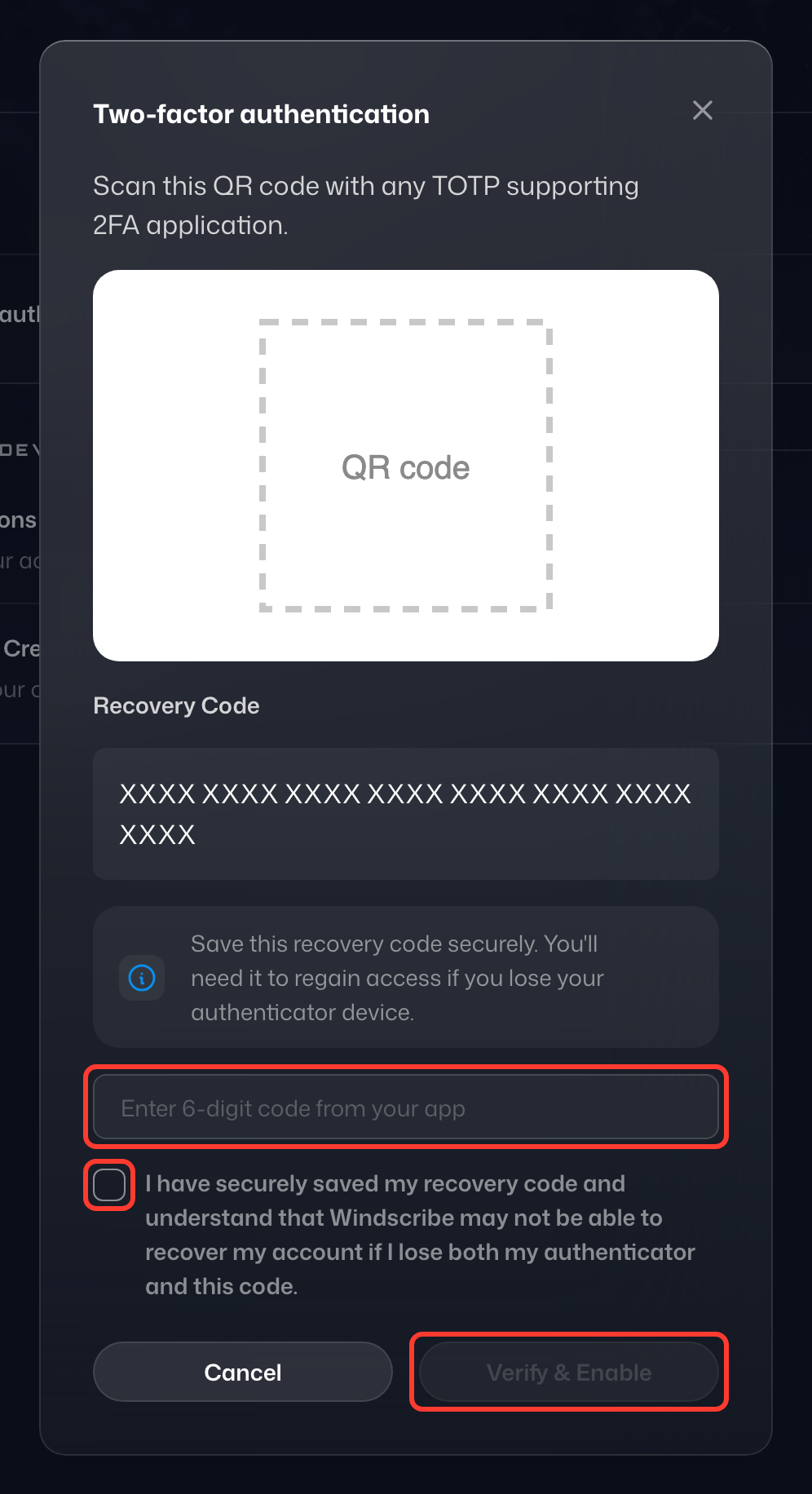
- Once you scan the QR code, save the new entry created for Windscribe.
- You will see a new 6-digit code generated for Windscribe in the app. Enter this code in the field under Enter the 6-digit code from your app.
- Save your recovery key somewhere safe (it's the only way back in if you lose your device), then click Verify & Enable.
Now whenever you log in to Windscribe, after typing your password you will be asked for a 2FA code. You can find this code in your 2FA app, which generates a new one at a regular interval.